



 English
  Türkçe
 Polski
 Українська
 Deutsch
 Română
 Português
 Svenska
 Русский
 Español
 ไทย
ไทย 日本語
日本語


How to Change FOV in CS2
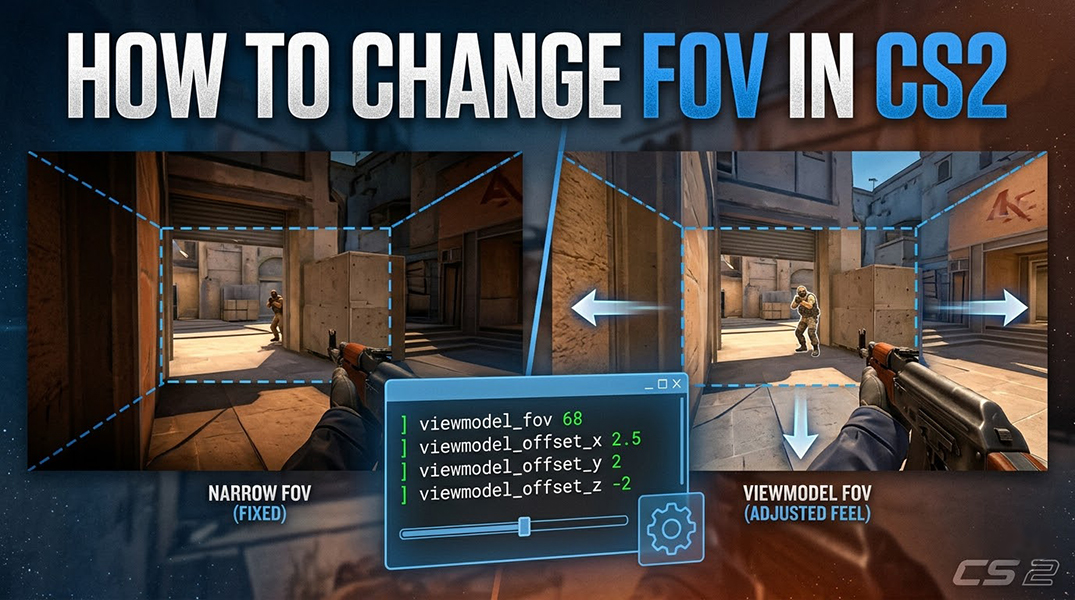
Field of View (FOV) is basically your peripheral vision in an FPS; the higher it is, the more of the map you see. Most of us want to crank it up to catch enemies lurking in the corners, but in CS2, it’s a bit of a touchy subject. Unlike other shooters that give you a simple slider, Valve keeps things pretty locked down, leaving many players wondering how to change FOV in CS2 and if they can even change it at all.
Can You Change FOV in CS2?
The short answer is no. Unlike many modern shooters, Counter-Strike 2 does not provide a dedicated slider to freely adjust your actual camera Field of View.
Valve keeps the FOV mostly fixed based on your aspect ratio to ensure gameplay remains consistent and competitive for everyone. By locking the perspective, the developers ensure that no player gains a massive hardware-based advantage by seeing more of the map than their opponent. While you can’t change what the “camera” sees, you can still tweak how your character’s arms and weapons appear on screen to help with visibility.
Settings That Affect FOV in CS2
While you can’t push the actual camera back, you aren’t completely stuck with the default look. In CS2, players use viewmodel settings to change the position of their character’s arms and weapon.
By adjusting these offsets, you can shift your gun further forward, to the side, or lower on the screen. While this doesn’t technically increase your peripheral vision, it frees up valuable screen real estate and makes the entire FOV feel much more open and less cluttered. If you feel like your weapon model is “choking” your view, these tweaks are the best way to get a cleaner perspective on the action.
How to Adjust Viewmodel Settings
To customize how your weapon appears on screen, you’ll need to use the Developer Console. Since there isn’t a simple slider in the standard menu for these specific tweaks, you’ll need to enable the console in your game settings and then input the following commands to find your perfect setup.
How to Change FOV in CS2 with Essential Viewmodel Commands
- viewmodel_fov: This is the closest thing to an FOV slider. It adjusts the distance of the weapon from your eyes. The maximum value is 68.
- viewmodel_offset_x: Moves the weapon left or right. A higher value moves it further to the edge of the screen.
- viewmodel_offset_y: Moves the weapon further away from or closer to your body.
- viewmodel_offset_z: Moves the weapon up or down. Lowering this can help clear up your vertical field of vision.
Copy-Paste Commands
You can copy and paste these directly into your console one by one: viewmodel_fov 68 viewmodel_offset_x 2.5 viewmodel_offset_y 2 viewmodel_offset_z -2
And if you want to go back to the way things were, just type viewmodel_presetpos 1 into the console to reset everything to the default “Desktop” look.
Why CS2 Limits FOV Settings
Valve’s decision to lock the Field of View is a deliberate design choice centered on competitive integrity. By keeping the FOV fixed, the developers ensure a consistent gameplay experience for every player, regardless of their hardware or settings.
If FOV were fully adjustable, players with ultra-wide monitors or specific custom settings would have a massive advantage by seeing more of the map than those on standard setups. Locking these values ensures fair visibility for all players, meaning everyone is looking at the same world through the same lens, keeping the focus entirely on skill and strategy.
Final Thoughts about Change FOV in CS2
While you can’t fully change FOV in CS2, mastering your viewmodel settings is the next best thing. These tweaks let you customize how your weapon and hands appear, freeing up screen space for a more comfortable view. It’s the perfect compromise, giving you a cleaner perspective while keeping the game’s competitive balance perfectly intact.